 WorkLoop
What is this?
Zapier is a free-to-try service that connects apps. You give it a rule: when this happens in one app, do that in another. Each rule is called a Zap.
Example: when someone creates a task in WorkLoop, send an email. Or the other way round: every Monday, create a task in WorkLoop.
Words you will see
- Zap
- One rule. It has a "when" part and one or more "do" parts.
- Trigger
- The "when this happens" part. For example, New Task in WorkLoop.
- Action
- The "do that" part. For example, Create Task in WorkLoop, or Send Email.
- Search
- A step that looks something up first, like finding a task by its title.
- Step
- One box in a Zap. A Zap is a trigger plus one or more steps.
- Connection
- The link between Zapier and your WorkLoop account. You set it up once.
Before you start
- A Zapier account. Free is fine to try. Zapier has its own plans and limits; see zapier.com/pricing.
- A WorkLoop team on the Team plan or higher. Integrations are part of those plans.
- You must be an owner or admin of that team. Members cannot connect a team.
- Optional: the WorkLoop app. It is the fastest way to sign in. Without it, you can sign in with your email and password in the browser.
Who can do what
| Role | Connect a team | Remove a connection | See Zapier in team settings |
|---|---|---|---|
| Owner, admin | Yes | Yes | Apps and Zaps |
| Member | No | No | Counts only |
Members still matter: tasks that the whole team can see may be sent to Zapier. Private tasks never are. See Staying in control.
Connect WorkLoop to Zapier
You do this once. After that, any Zap you make can use WorkLoop.
-
Accept the invite
Click Add WorkLoop in Zapier below. Sign in to Zapier if it asks, then click Accept Invite & Build a Zap. Zapier says the app has not been reviewed by Zapier yet. That is expected during early access.
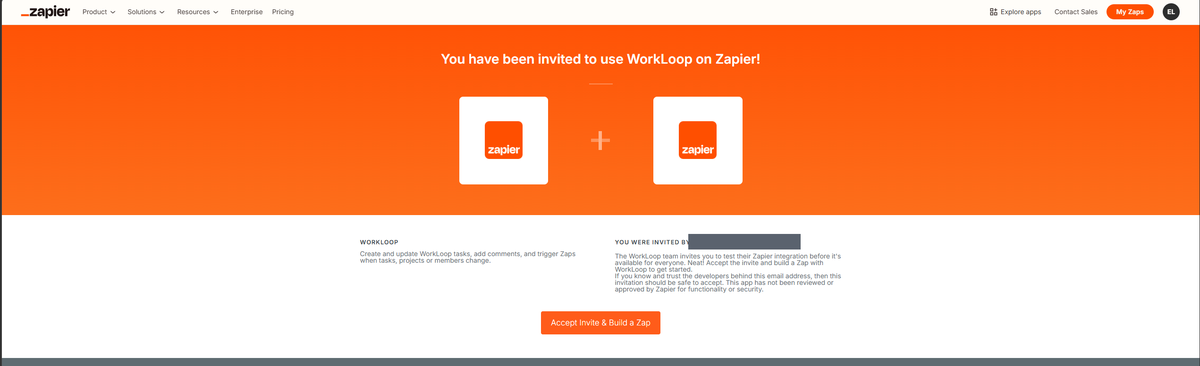
You should see: a page that says You have been invited to use WorkLoop on Zapier, and then the Zap editor.
-
Start a new Zap and choose WorkLoop
In Zapier, click Create, then Zap. Click the Trigger box, search for WorkLoop and pick the one marked Invite Only. For Event, choose New Task.
Screenshot: the trigger box with WorkLoop and New Task chosenYou should see: a field called Account asking you to sign in.
-
Click Sign in
Next to Account, click Sign in. A small window opens. Keep it open and do not close it.
Screenshot: the small window titled "Open WorkLoop to continue"You should see: a page that says Open WorkLoop to continue, with an Open WorkLoop button and a link Sign in on the web instead.
If nothing opens, your browser blocked the pop-up. Allow pop-ups for zapier.com and try again.
-
Sign in: pick the way that fits you
Route A. You have the WorkLoop app
- Click Open WorkLoop. Your browser may ask to open the WorkLoop app. Say yes.
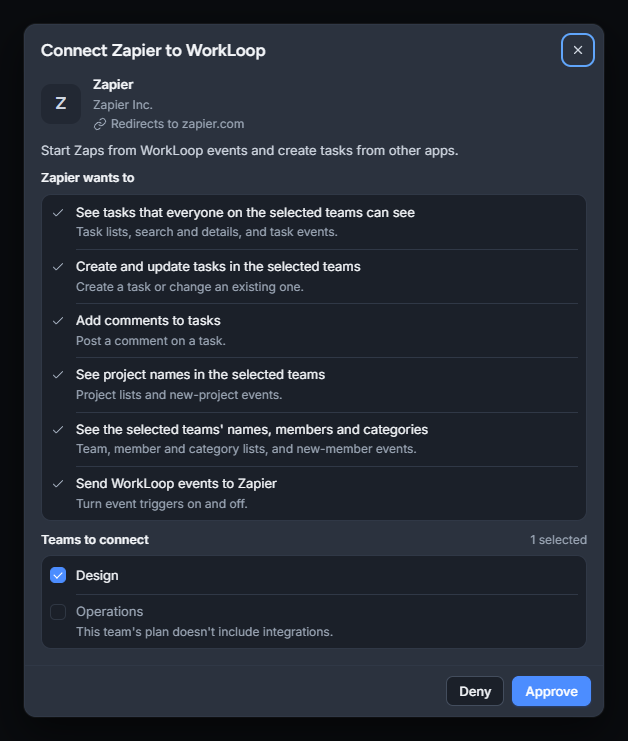
- The app shows a window called Connect Zapier to WorkLoop. Go to the next step to choose your teams.
Route B. No app, or you prefer the browser
- Click Sign in on the web instead.
- Type your WorkLoop email and password. Click Sign in.
- The same Connect Zapier to WorkLoop page opens in the browser. Pick teams and click Approve.
- If your account uses two-step sign-in, type the 6-digit code from your authenticator app. Lost your phone? Tick This is a recovery code and use a recovery code.
Screenshot: the web sign-in formSigned up with Google, Microsoft or Apple, or sign in with a passkey? Use Route A. The browser form only works with an email and password.
You should see: a window called Connect Zapier to WorkLoop, with a list under Teams to connect.
-
Choose the teams to connect
Under Teams to connect, tick each team you want Zapier to work with. Zapier can only see the teams you tick here, and nothing else.
- Teams you cannot connect are greyed out, with a note. This team's plan doesn't include integrations means the team needs a higher plan. Ask an owner or admin of this team to connect it means you are not an owner or admin.
- A sub-team is its own team. Tick it too if you want it.
You should see: at least one team you can tick. If none are available, see Troubleshooting.
-
Read what you are allowing
The window lists what Zapier will be able to do, under Zapier wants to. Here is what each line means:
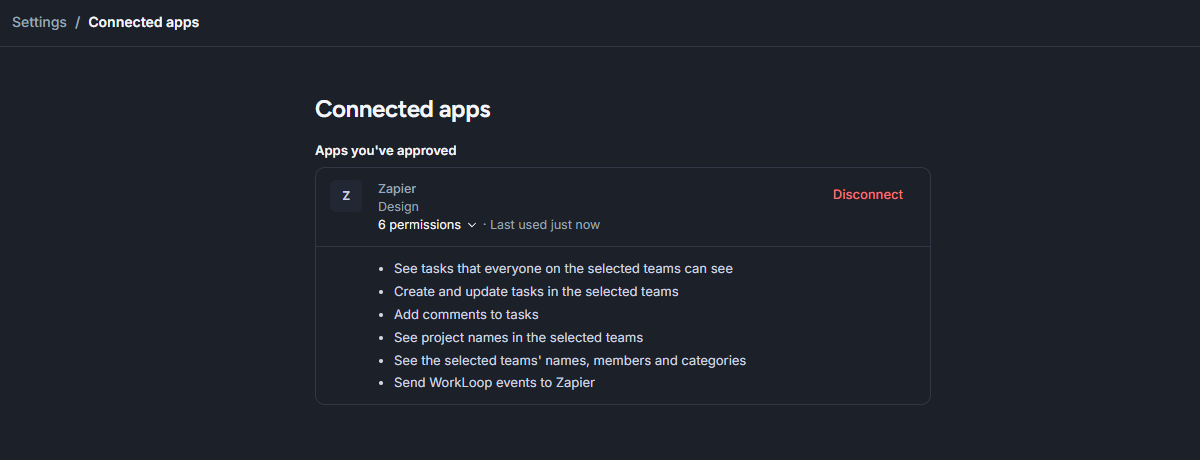
The screen says In plain words See tasks that everyone on the selected teams can see Zapier can read team tasks and hear about new ones. It cannot read private tasks or your personal tasks. Create and update tasks in the selected teams Zaps can add tasks and change them. They act as you. Add comments to tasks Zaps can post comments. They show you as the author. See project names in the selected teams Zapier can list projects so you can pick one, and hear about new projects. See the selected teams' names, members and categories Zapier can list team members (name and username, never email) and your task categories. Send WorkLoop events to Zapier Lets triggers work. WorkLoop tells Zapier when something happens, so Zaps start right away. Nothing here lets Zapier change your password, billing or account settings.
-
Click Approve
Click Approve. To say no, click Deny. The window may briefly say Returning to Zapier and then closes. You have 10 minutes from step 3 to finish. After that, start again.
You should see: back in Zapier, the Account field now shows your WorkLoop username and your team name, like sam (Design).
-
Check it worked
Click Continue in Zapier. If it moves on to the next field, you are connected. You can use this connection in every Zap from now on.
You should see: a field called Team with your team in it.
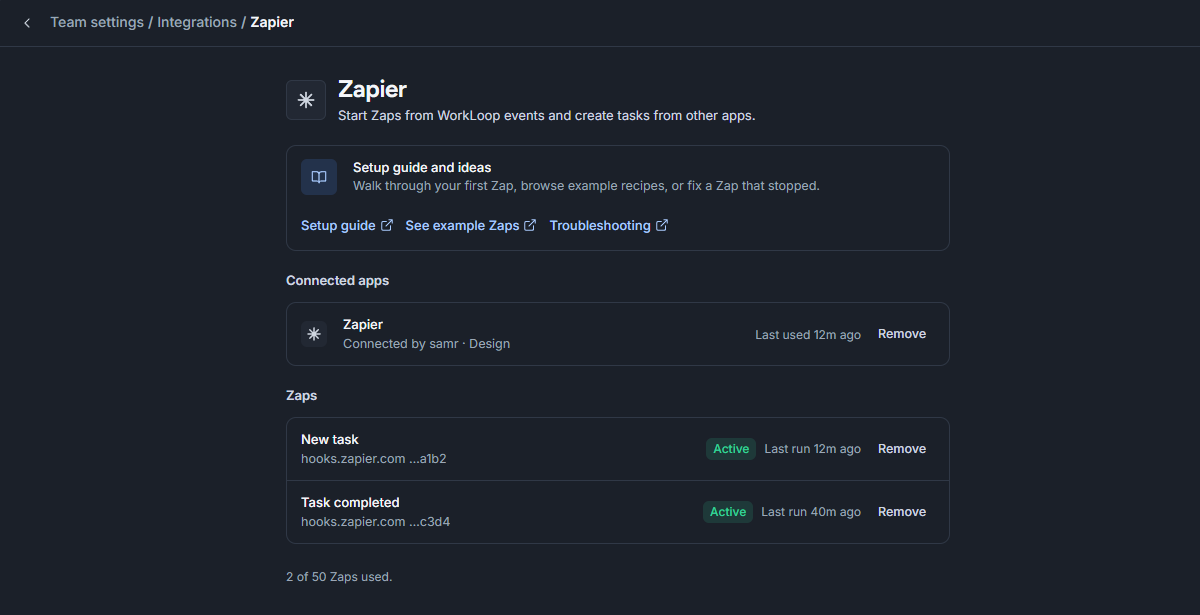
You can also check inside WorkLoop: open Settings, then Team settings, then Integrations, then Zapier. Your connection is listed under Connected apps, and each Zap you turn on appears under Zaps.
Make your first Zap
Two quick walkthroughs. The first starts in WorkLoop. The second ends in WorkLoop. Each one uses a real Zap, so tests really send emails and really create tasks.
Walkthrough 1: New task in WorkLoop, send me an email
-
Pick the trigger
Create a Zap. Trigger app: WorkLoop. Event: New Task. Choose your connection as the Account. Click Continue.
You should see: the Set up trigger step.
-
Choose your team
Pick your Team. Leave Project, Category, Assignee and Priority empty for now. They are filters that narrow when the Zap runs. Click Continue.
Screenshot: trigger set up with a team chosen -
Test the trigger
Click Test trigger. Zapier loads your latest tasks as examples. Pick one.
You should see: a list of tasks with fields like Task title, Task status and Task link.
No tasks? Create a task in WorkLoop that your whole team can see, then test again. Private and personal tasks never show up.
-
Add the email step
Click the + under the trigger. Choose Email by Zapier, event Send Outbound Email. For To type your own email. In Subject, type
New task:then click the Task title field to insert it. In Body, insert Task due date and Task link.Screenshot: the email step with fields filled in -
Test the email
Click Test step. Check your inbox.
You should see: an email with the title of the task you picked.
-
Turn the Zap on
Click Publish. Then create a new task in WorkLoop, in that team, visible to everyone. An email usually arrives within a minute.
You should see: a new email for your new task, and a new line in the Zap's Zap history in Zapier.
Walkthrough 2: Every Monday, create a task in WorkLoop
-
Pick the trigger
Create a Zap. Trigger app: Schedule by Zapier. Event: Every Week. Choose Monday and a time. Click Continue, then Test trigger.
-
Add the WorkLoop action
Click +. Choose WorkLoop, event Create Task. Pick your connection under Account.
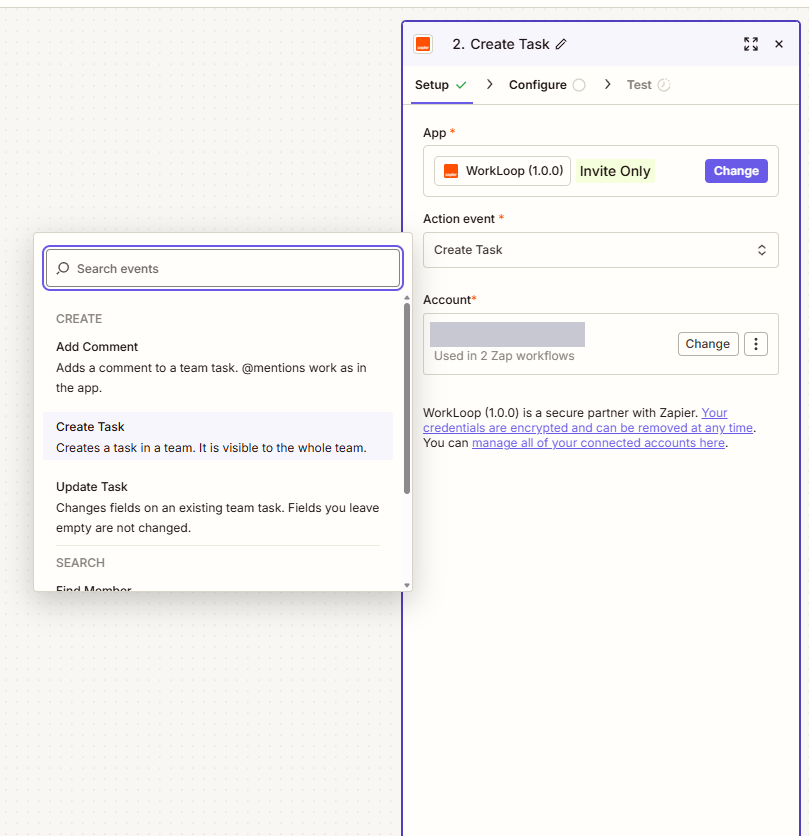
The event list shows Add Comment, Create Task and Update Task, then the searches. -
Fill in the task
Pick your Team. For Title, type
Send the weekly update. Optionally choose a Priority and an Assignee. Leave fields you do not need empty; empty fields are skipped.Screenshot: Create Task with title and team filled in -
Test it
Click Test step. This creates a real task in your team. Open WorkLoop to find it, then delete it if you do not want it.
You should see: a new task called Send the weekly update in your team, visible to everyone on the team.
-
Turn the Zap on
Click Publish. A new task appears every Monday at the time you chose.
Ideas
Twelve Zaps you can copy. Steps in other apps (Slack, Google Sheets and so on) are Zapier's, so their screens may look a little different. Fields to map means: click the field in Zapier, then pick the value shown.
WorkLoop does not share anyone's email address with Zapier. Recipes that need to email a person from WorkLoop data are not possible. The ones below use names, usernames and links instead.
1. Tell a Slack channel about every new task
Your team sees new work without opening WorkLoop.
- Fields to map
- Message text:
New task: {Task title} (due {Task due date}) {Task link}
2. Keep a "done" log in Google Sheets
A running list of finished work for weekly reports.
- Fields to map
- Columns: Task title, Completed by name, Occurred at, Category name, Task link.
3. Announce who got which task
Everyone sees when work is handed over.
- Fields to map
- Message text:
{Assignee name} was given: {Task title} {Task link}. To only hear about one person, set the Assignee filter on the trigger.
4. Turn form answers into tasks
Requests from a form land straight in your team.
- Fields to map
- Team: your team. Title: the "what do you need" answer. Description: the other answers. Priority: a fixed choice, or map an answer.
5. Star an email, get a task
Never lose an email you meant to act on.
- Fields to map
- Title: the email Subject. Description: From, then the plain body. Tags:
email.
6. Get a Slack message when someone mentions you
Catch comments that need an answer.
- Fields to map
- Filter: Comment contains
@yourusername. Message:{Author name} wrote on {Task title}: {Comment} {Task link}. Send it to yourself.
7. Welcome new team members
Start an onboarding row or post a hello when someone joins.
- Fields to map
- Member name, Username, Role, Joined at. WorkLoop does not send the new member's email.
8. Make a Notion page or Trello board for each new project
Keep other tools in step with WorkLoop.
- Fields to map
- Name: Project name. Notes: Description, Due date and Project link.
9. Keep an Airtable or Notion board in sync
When a task moves, the row moves too.
- Fields to map
- Find the row where the Task ID column equals Task ID. Update its Status with New status. Use the New status filter on the trigger to react to one status only. Statuses are
todo,inprogressanddone.
10. Turn support tickets into tasks
Zendesk, Help Scout or Intercom tickets that need follow-up become work.
- Fields to map
- Title:
Ticket {ticket number}: {subject}. Description: requester name and the ticket link. Tags:support.
11. A weekly checklist task
Routine work shows up on its own. This is walkthrough 2 with a due date.
- Fields to map
- Title:
Weekly report. Due date: the Formatter result. Assignee: pick the person.
12. Never create the same task twice
Use a search first, and create only when nothing is found.
- Fields to map
- Find Task: Title contains a unique piece of text, like the ticket number. Tick Create WorkLoop Task if it doesn't exist yet, then fill in the Create Task fields.
- Avoid loops
- A Zap that starts with New Task and ends with Create Task can run forever. Tasks that Zapier creates carry Created via =
zapier. Add a Filter by Zapier step after the trigger: continue only if Task Created via does not exactly matchzapier.
Reference
Every trigger, action and search WorkLoop offers in Zapier. Fields marked required must be filled in. Every item also needs the connection permissions listed under it.
Triggers
Triggers start a Zap. WorkLoop tells Zapier the moment something happens. Only things the whole team can see are sent. Every trigger asks for a Team (required). While you set one up, Test trigger shows your latest matching items as examples.
New Task Trigger
Runs when a team task is created, by anyone, including by another Zap.
- Filters (optional)
- Project, Category (yours), Assignee, Priority.
- Gives you
- Event fields (Event ID, Occurred at, Team name) and Task fields: title, description, status, priority, due and start date, tags, category, project, assignee, creator, Created via, task link.
- Needs
- See tasks (
tasks:read) and Send events (webhooks:manage).
Task title: Finalize Q3 roadmap deck
Task status: todo
Task priority: high
Task due date: 2026-10-09T14:00:00.000Z
Creator name: Sam Rivera
Task link: https://api.useworkloop.com/open/task/…
Task Assigned Trigger
Runs when a team task is assigned or given to someone else.
- Filters (optional)
- Project, Category, Assignee.
- Gives you
- The task fields, plus Assigned by. "Previous assignee" is always empty today.
- Needs
tasks:read,webhooks:manage.
Task Completed Trigger
Runs when a team task is marked done. Test data shows your latest done tasks.
- Filters (optional)
- Project, Category.
- Gives you
- The task fields, plus Completed by.
- Needs
tasks:read,webhooks:manage.
Task Status Changed Trigger
Runs when a team task moves between To do, In progress and Done.
- Filters (optional)
- Project, Category, New status (only run when a task moves to this status).
- Gives you
- The task fields, plus Previous status, New status and Changed by.
- Needs
tasks:read,webhooks:manage.
Previous status: todo
New status: inprogress
Changed by name: Ana Costa
New Task Comment Trigger
Runs when someone comments on a team task.
- Filters (optional)
- Project.
- Gives you
- A short task summary (title, status, assignee, link) and the comment: text, author, time. The text keeps
@mentionsas typed. - Needs
tasks:read,webhooks:manage.
Comment: Can we add infra milestones? @ana
Author name: Sam Rivera
Task title: Finalize Q3 roadmap deck
New Team Member Trigger
Runs when someone joins the team. Test data shows your newest members.
- Filters
- None.
- Gives you
- Member ID, username, name, role, joined at. Never an email address.
- Needs
- See team names, members and categories (
teams:read) andwebhooks:manage.
New Project Trigger
Runs when a team project is created that the whole team can see.
- Filters
- None.
- Gives you
- Project ID, name, description, status, start and due date, creator, project link.
- Needs
- See project names (
projects:read) andwebhooks:manage.
Actions
Actions do something in WorkLoop. They act as the person who connected, so the team sees that person's name.
Create Task Action
Adds a task to a team. The whole team can see it, and WorkLoop marks it as created by Zapier (Created via = zapier). If Zapier retries the same step, you do not get a second copy.
- Required
- Team, Title.
- Optional
- Description, Status (To do, In progress, Done), Priority (Urgent, High, Medium, Low), Due date, Start date, Assignee, Project, Category, Tags, Estimate (hours). Empty fields are skipped.
- Gives you
- Task ID, Team ID, Title, Status, Priority, dates, IDs, tags, Task link, Created via, Created at, Updated at.
- Needs
tasks:write, plusteams:read,projects:readandtasks:readto fill the dropdowns.- Common errors
- "Due date … is not a valid date." Use a real date. Assignee must be a team member. Category must be one of yours. Project must be visible to the team. "Upgrade your plan to use this feature." The team needs the Team plan or higher.
Update Task Action
Changes a team task. Fields you leave empty are not changed.
- Required
- Team, Task ID. Fill at least one other field, or you get "Fill in at least one field to change."
- Where to get the Task ID
- Insert Task ID from the trigger, or from a Find Task step.
- Gives you
- The same fields as Create Task.
- Needs
tasks:write.- Common errors
- "That task could not be found." The ID is wrong, or the task is private, archived or outside the team.
Add Comment Action
Posts a comment on a team task. @mentions work like they do in the app.
- Required
- Team, Task ID, Comment.
- Gives you
- Comment ID, text, author, time, plus the task's ID, title and link.
- Needs
comments:write.- Common errors
- Same as Update Task for a missing task.
Searches
A search looks something up. If it finds nothing, the Zap stops there, unless you tick the "create if not found" box.
Find Task Search
Finds team tasks. Returns up to 25, newest first.
- Required
- Team.
- Optional
- Title contains (at least 2 characters), Project, Status.
- Gives you
- The same fields as Create Task.
- Needs
tasks:read.
Find Member Search
Finds team members by name or username. Returns up to 25.
- Required
- Team, Name or username (at least 2 characters).
- Gives you
- Member ID, username, name, role. Use the ID as the Assignee in Create Task.
- Needs
teams:read.
Find or Create Task Search
Finds a task, and creates one when none matches. In Zapier this is the Find Task step with a box to tick: Create WorkLoop Task if it doesn't exist yet. Use a title match that is unique, like a ticket number. This is how you avoid duplicates.
- Needs
tasks:readandtasks:write.
Staying in control
What Zapier receives
- Only tasks, comments and projects that everyone on the connected team can see.
- Never private tasks, restricted tasks, archived tasks or tasks in a narrower project.
- Never personal tasks. Your own tasks outside a team send nothing.
- Member names, usernames and roles. Never emails, passwords or billing details.
- Only the teams you ticked when you connected.
Categories belong to you, not the team. The category list in Zapier is your own list.
How to disconnect
- In WorkLoop, for a team: open Settings, then Team settings, then Integrations, then Zapier. Click Remove next to the connected app. Owners and admins only.
- In WorkLoop, for your account: open Settings, then Connected apps. Click Disconnect next to Zapier.
- In Zapier: open My Apps and remove the WorkLoop connection. Remove it in WorkLoop too, so access is fully removed.
Zaps using a removed connection stop. Zapier shows "WorkLoop access was removed. Reconnect WorkLoop." If someone else removes a connection you made, you get a notice in WorkLoop.
If your plan ends
If the team drops below the Team plan, or you stop being an owner or admin, triggers stop sending and actions fail. Nothing is deleted. When the plan is back, turn each Zap off and on again in Zapier.
How long a connection lasts
It stays connected as long as a Zap uses it. If nothing uses it for 90 days, Zapier asks you to reconnect.
Limits
| Limit | Amount |
|---|---|
| Requests per connection | 600 per minute |
| New tasks per connection | 60 per minute |
| Requests per team, all connections | 1,200 per minute |
| Active trigger Zaps | 50 (the Zapier page in team settings shows how many are used) |
| If Zapier is unreachable | WorkLoop retries for about two hours, then stops |
Go over a limit and the step fails with a "wait a minute" message. Open the Zap history in Zapier and replay it.
Troubleshooting
The sign-in window never finishes
Do this: allow pop-ups for zapier.com. Start again from Sign in in Zapier, and finish within 10 minutes. If the app does not respond, click Sign in on the web instead.
My browser does not open the WorkLoop app
Do this: install or update WorkLoop, sign in to it, then click Open WorkLoop again. Still stuck? Use Sign in on the web instead.
The web form says "Incorrect email or password"
Do this: check for typos. If you signed up with Google, Microsoft or Apple, or use a passkey, the form will not work. Open the WorkLoop app and use Open WorkLoop instead. After too many tries, wait a minute.
My team is greyed out, or I see no teams
Read the note under the team. This team's plan doesn't include integrations: the team needs the Team plan or higher. Ask an owner or admin of this team to connect it: you are not an owner or admin.
I am only a member of the team
Do this: ask a team owner or admin to connect WorkLoop to Zapier. Members cannot connect a team.
I connected the wrong team
Do this: remove the connection (see How to disconnect), then connect again and tick the right team. Zaps need to be pointed at the new connection and the right team.
My Zap fails with "WorkLoop access was removed"
Do this: someone removed the connection, or the plan ended. In Zapier, open the Zap, click the WorkLoop step, and reconnect your account. Then replay the failed run.
My Zap never runs
Check, in order: the Zap is turned on. The task is in the connected team, and the whole team can see it (not private, not personal). Your trigger filters, such as Project or Assignee, match the task. After a plan change, turn the Zap off and on.
"Test trigger" finds nothing
Do this: create a task in that team that everyone can see, then test again. Clear any filters you set.
I get duplicate tasks
Usually two Zaps do the same job, or a Zap triggers itself. Turn off the extra Zap. Use Find Task with "create if not found", and a Filter on Created via. See idea 12.
I see "Too many requests" or "wait a minute"
Do this: wait a minute, then replay the step from Zap history. If it keeps happening, spread the work out, for example with Delay by Zapier. Limits are in Staying in control.
I see "Upgrade your plan to use this feature"
Do this: the team needs the Team plan or higher. Ask the team owner to upgrade, then try again.
I see "This connection doesn't have permission to do that"
Do this: reconnect WorkLoop in Zapier and click Approve on the permissions screen. If the message says the connection doesn't include that team, reconnect and tick it.
A Zap ran late
WorkLoop retries when Zapier is busy, for about two hours. Check system status and Zapier's status page.
Still stuck? Email support@useworkloop.com with your team name and what you saw.
Back to all docs